Record Training Episodes
This is the data collection step — episodes are recorded into a LeRobot dataset that is then used to fine-tune SmolVLA. There are two ways to record, and both write the same dataset with the same (wrist_camera, state, action, task) schema, so they mix freely (see Behavioral Cloning Data for the convention that makes them interchangeable):
- Method A — Teleop — you drive the arm with an Xbox controller. Best for varied, human-quality demonstrations.
- Method B — Automated — a scripted MoveIt expert generates episodes hands-free in simulation. Best for scaling up data volume.
Method A — Teleop (Xbox controller)
You drive the arm with the gamepad while the node records wrist-camera video, joint positions, and joint targets.
Terminal guide: three terminals open at once — one for the simulation (
docker compose --profile sim up), one for the recorder (docker compose run --rm record), and one optionally for the camera preview.
The simulation environment
The tabletop world places the AR4 in front of a three-tier shelf stocked with a teal cube, magenta cube, and yellow cube as pick-and-sort targets.
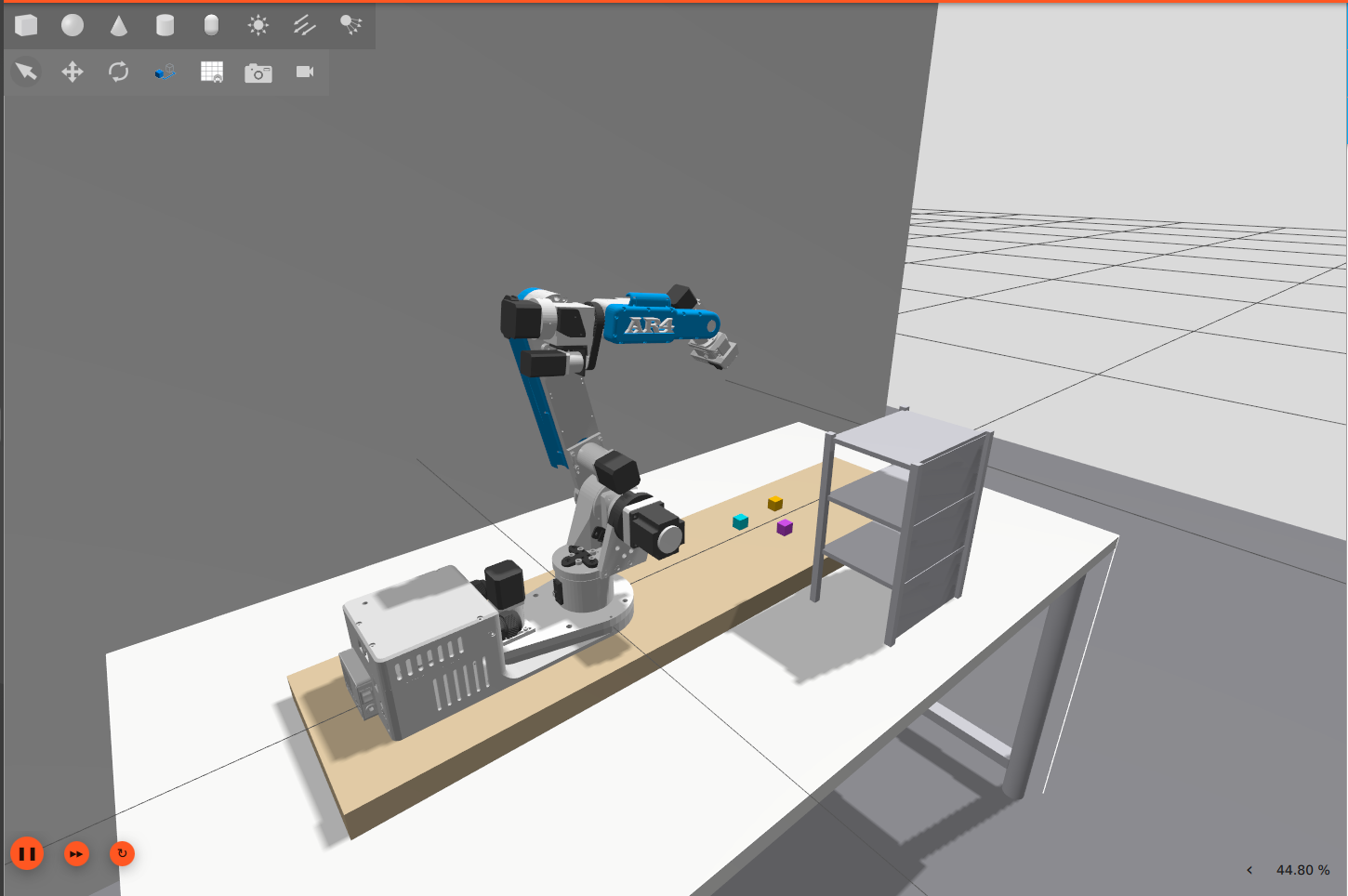
Step 1 — Start the simulation
Gazebo and RViz2 will open. Wait until you see this line in the terminal logs before continuing — it means the arm is ready:
This can take 30–60 seconds on first launch while the simulation fully loads.
Explore the environment first — before recording, open the Motion Planning panel in RViz2 and drag the orange interactive marker on the arm to plan and execute moves. This is a good way to get familiar with the robot's range of motion before you start collecting data.
Wrist Camera View
The AR4 has an RGB camera mounted at the gripper that publishes to /wrist_camera/image (480×640, 30 Hz). This is the same feed that gets recorded into the dataset — check it before recording to verify framing and lighting.
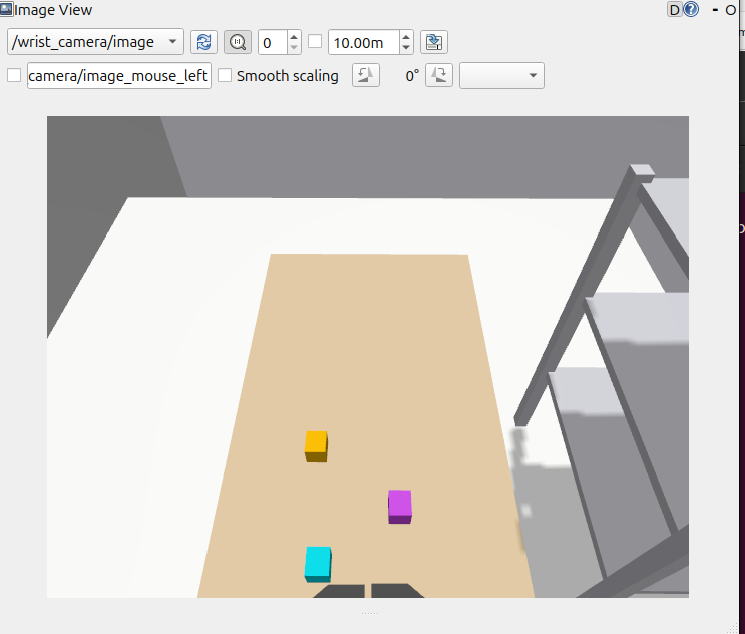
Option A — rqt_image_view (quickest — run on your host machine, not inside Docker)
If you don't have it installed yet:
Then open a new terminal on your host (with ROS sourced) and run:
In the rqt window, open the topic dropdown at the top and select /wrist_camera/image.
Option B — Foxglove Studio (no ROS install needed)
Open app.foxglove.dev → Open connection → WebSocket → ws://localhost:8765, then add an image panel and select /wrist_camera/image.
Step 2 — Start the recorder (in a new terminal)
The container builds ar4_teleop and then moves the arm to the home position — you should see it move in Gazebo (and on real hardware). This confirms the recorder is connected to the simulation. Once the arm settles, the control map is printed. You are now ready to record.
Options
| Variable | Default | Description |
|---|---|---|
TASK | "place the teal cube on the top shelf" | Task description stored with every frame — used by SmolVLA at inference |
HF_USERNAME | local | Your HuggingFace username — dataset saves to ./data/datasets/<username>/ar4_pick_place/ |
MAX_EPISODE_DURATION | 60.0 | Auto-pause after this many seconds (0 = disabled) |
JOINT_JOG | false | true = map each axis directly to one joint instead of Cartesian twist |
Xbox Controller Reference
| Input | Action |
|---|---|
| Left stick X | Joint 1 — base rotation |
| Left stick Y | Joint 2 — shoulder |
| LT / RT | Joint 3 — elbow |
| Right stick X | Joint 4 — forearm rotation |
| Right stick Y | Joint 5 — wrist tilt |
| LB / RB | Joint 6 — wrist rotation |
| Hold A | Gripper open (release to close) |
| Y (controller or keyboard) | Save episode, start next |
| B / keyboard N | Discard episode, start next |
| Keyboard R | Arm the recorder (start capturing frames) |
| Keyboard H | Return arm to home position |
| Ctrl-C | Quit and finalize the dataset |
Tip — dominant-axis mode: Only the stronger axis on each stick is active at once, so diagonal inputs won't accidentally move two joints. Drive one direction at a time for clean demonstrations.
Tip — speed: The default speed scale is 0.35×. If the arm feels sluggish for repositioning, you can raise it by editing
--speed-scaleinar4_teleop/launch/record.launch.py.
How recording works under the hood
The gamepad drives the arm through MoveIt Servo using velocity commands — this feels smooth and natural. But what actually gets saved as the training label is the absolute joint position at each timestep, not the velocity. (This is the key convention; the design page explains why it lets a human and a MoveIt expert produce the same data.)
At inference SmolVLA predicts those same absolute positions and sends them directly to the joint controller, bypassing Servo. This is important because position targets are deterministic: the same target always produces the same pose, eliminating the drift that accumulates with velocity-based control over long episodes.
What gets recorded?
Each frame is one row of a LeRobot episode — a wrist-camera image, the current joint + gripper state, and the action (the realised absolute joint positions) that SmolVLA learns to predict. The full feature schema and the recorder that writes it (shared with the sim collector) are documented once on the Behavioral Cloning Data page.
Method B — Automated (scripted MoveIt expert)
A scripted expert (moveit_record_node) drives the arm hands-free: it uses MoveIt for
collision-aware pick-and-place against the shelf while a decoupled recorder writes the
dataset. One generic instruction is used, and each episode samples a random object and a
random shelf, so a single run yields varied multi-task demonstrations. Missed grasps are
auto-discarded so they don't poison the data. The campaign (objects, shelves, instruction,
episode count) is defined in ar4_teleop/config/sim_data_tasks.yaml; the placement design
and the action convention are on the Behavioral Cloning Data page.
The recorder runs in its own numpy-2 container and consumes the camera + joints over
Zenoh (episode lifecycle over a shared file), so lerobot never has to load inside the
ROS runtime.
1. Start the sim, MoveIt, and the Zenoh bridge:
2. Start the decoupled LeRobot recorder — it writes to ./data/datasets/ar4_pick_place_moveit/ (the MoveIt-expert dataset):
3. Run the expert for N episodes (random object × shelf each episode):
LEROBOT_VENVonly needs to point at any existing directory here — the decoupled path doesn't use it, but therecord-simservice mounts it, so it must resolve. Rehearse with--dry-run(replays the motion, records nothing) while calibrating; pin a single object/shelf with--object block_teal --only top.
4. Finalize the dataset — stop the recorder so it flushes the parquet footers + meta:
Always stop the recorder with
docker stop. It triggersLeRobotDataset.finalize(); hard-killing it leaves a truncated, unreadable parquet.
A 30-episode run yields ~28 saved episodes (a few grasp-misses are discarded) — roughly
16k frames — in the MoveIt-expert dataset ar4_pick_place_moveit, kept separate from
the teleop dataset (same schema, so the two can be merged at train time).
Where is my data?
The two methods write separate datasets on the host (bind-mounted as /data in the container), each created on the first saved episode and stored as Parquet + MP4 in LeRobot v3 format:
- Method A (teleop) →
./data/datasets/ar4_pick_place/ - Method B (MoveIt expert) →
./data/datasets/ar4_pick_place_moveit/
They share one schema, so you can union them for training.